
If you have ever tried to get a timesheet report out of Jira, you already know the frustration. You click around, hit a wall, and discover that Jira’s native time tracking has no timesheet view at all. There is no weekly or monthly grid showing hours per person per day. To get that, you are redirected to the Atlassian Marketplace and pushed toward a paid add-on — tools like Tempo Timesheets, which cost additional fee just to see your own team’s logged hours in a readable format.
Qanban does it differently. Our built-in timesheet feature is available the moment you create your account — zero configuration, zero extra cost, and no third-party plugin required. It is not an upsell. It is not locked behind an enterprise tier. It is right there, ready to go, from your very first login.
What Is the Qanban Timesheet?
The Qanban Timesheet is a fully integrated time-reporting module within the Qanban Enterprise Framework. It gives project managers, team leads, HR departments, and business owners a crystal-clear picture of who worked on what, and for how long — broken down by day, by project, and by individual team member.
Unlike standalone time-tracking apps that require your team to remember to log in to a completely separate tool, the Qanban Timesheet pulls directly from the work your team is already doing inside Qanban. Your developers move cards, update tasks, and log work. The timesheet captures it all — automatically aggregated and ready to report.
Available Immediately. No Setup Required.
This is the part that surprises most teams migrating from Jira or Monday.com.
When you create a Qanban account — even a free account — the timesheet is already activated. There is no integration to configure, no third-party plugin to install, and no credit card required to unlock basic reporting.
- Free Account: Access timesheet data for the last 7 days immediately upon signup.
- Paid Account: Access your full historical timesheet data going back up to 90 days — covering everything from your project’s earliest recorded entries.
Compare that to the competition:
| Capability | Qanban | Jira | Asana | Monday.com |
|---|---|---|---|---|
| Timesheet available on free plan | Yes (7 days) | No — add-on required | No | No |
| Timesheet view (grid by person/day) | Yes | Add-on required | Advanced plan only | Pro plan only |
| Export to Excel | Yes (built-in) | Add-on required | Limited | Limited |
| Per-user breakdown | Yes | Requires Tempo | Add-on required | Add-on required |
| Color-coded allocation status | Yes | No | No | No |
| Extra subscription needed | No | Yes | Yes | Yes |
No other project management platform in this price range gives you a proper timesheet out of the box. Not Jira. Not Asana. Not Monday.com.
A Timesheet That Actually Makes Sense
Open the Timesheet report from your Qanban workspace and you will immediately notice that it was designed by people who have actually used timesheet reports in the real world.
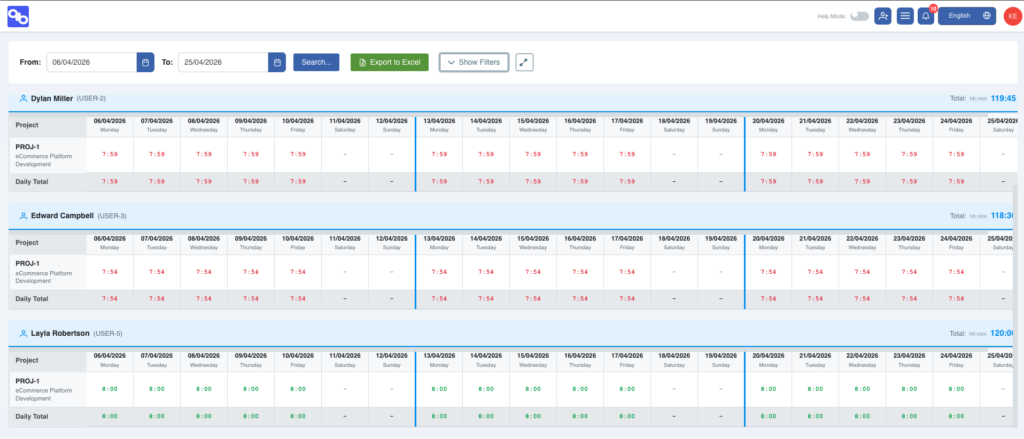
Intuitive Date Range Selection
Pick your From and To dates using the built-in calendar picker. The system is smart about it — the “To” date only becomes active after you select a “From” date, preventing invalid ranges before you even press Search. A minimum one-day gap is enforced automatically so your reports are always meaningful.
Free account users see a clear notification explaining their 7-day window, with a one-click option to upgrade for deeper history. Paid account holders simply pick any date range they need and go.
Per-User Timesheet Tables — No More Spreadsheet Juggling
Rather than dumping all your data into one giant unreadable grid, each team member gets their own dedicated table. Every table shows:
- A row for each project the user worked on during the selected period
- A column for each calendar day in your date range
- Daily hours logged in HH:MM format — precise to the minute, never rounded to a half-hour
- A Daily Total footer row showing the sum across all projects for each day
- A Grand Total showing the user’s total logged hours for the entire reporting period
At a glance, you can see whether a team member worked 7 hours on your flagship product on Tuesday or only clocked 3 hours across two projects on Thursday. No formulas. No pivot tables. No copy-pasting from another tool.
Color-Coded Allocation Status — Green or Red at a Glance
Every daily hours cell is color-coded to communicate allocation status instantly:
- Green (Fully Allocated): The team member reached their expected working hours for that day. Capacity is on track.
- Red (Not Fully Allocated): Hours logged are below the expected threshold. This could indicate under-reporting, an unplanned absence, or a capacity issue worth a quick conversation.
- Weekend cells are left neutral — no false alerts on days that were never expected to be working days.
This color-coded system means you can scan an entire team’s timesheet in seconds and immediately spot patterns — without reading a single number. It is the kind of thoughtful design that turns a raw report into an actionable management tool.
Powerful Filtering, Built Right In
Once your timesheet data loads, the filter panel gives you granular control over exactly what you are looking at.
Filter by Users
Running a report for your entire organization but only care about the engineering team? Use the multi-select user filter to show only the people you need. It supports chip-style display and real-time search, so finding the right team member in a large organization takes seconds. Filters recalculate all totals on the fly — no refresh needed.
Filter by Projects
Working on a client billing report and only need hours tied to specific projects? The project filter lets you narrow down rows instantly. Grand totals and daily totals update automatically to reflect exactly the data you are looking at.
Hide Weekends
Nobody wants to scroll past empty weekend columns in a 90-day report. Toggle Hide Weekends and those columns disappear instantly, keeping your view clean and focused on actual working days. Visual week boundary markers automatically appear between Friday and Monday so you never lose track of where one week ends and the next begins.
Fullscreen Mode
For team standups, sprint reviews, or client billing calls, the timesheet supports a fullscreen mode with a single click. No distractions. No sidebars. Just the data, edge to edge.
Export to Excel in One Click
When it is time to share a report with your finance department, your client, or your HR team, the Export to Excel button does exactly what you would expect — and more.
Each team member gets their own dedicated worksheet tab in the exported workbook, named clearly with their employee ID and name. Column widths are automatically sized for readability. Daily headers include both the date and the day of the week. All daily totals and grand totals are included.
The exported file is automatically named with your selected date range — for example, Timesheet_2026-02-01_to_2026-03-31.xlsx — so your downloads folder stays organized without any manual renaming.
This is the kind of feature that Jira users have to purchase Tempo for. In Qanban, it is just there.
Timezone-Aware Reporting for Distributed Teams
If your team is spread across time zones, you have probably encountered the maddening problem of time-tracking data that does not add up — someone’s “Monday” entries get counted as “Sunday” somewhere else, and your reports come out wrong.
Qanban’s timesheet is fully timezone-aware. It uses each user’s local timezone when calculating date boundaries, so the data you see always reflects actual local working days, regardless of where in the world your team is based. Remote-first teams can finally trust their timesheet data.
Who Is the Qanban Timesheet For?
The Qanban Timesheet was built for the people who actually live inside project management tools every day:
- Project Managers who need to monitor whether teams are hitting capacity targets before it becomes a delivery risk
- Business Owners who need to invoice clients based on accurately tracked, verifiable hours
- HR and Finance Teams who require complete timesheet records for payroll, compliance, or audits
- Team Leads who want to spot under-allocation early, before it turns into a missed deadline
- Freelancers and Agencies who manage multiple simultaneous projects and need per-project time breakdowns for client billing
Whether you are running a five-person startup or a 200-person enterprise, the Qanban Timesheet scales with you — and it grows with your plan, not against it.
Why Teams Are Switching to Qanban for Timesheet Reporting
The story we hear most often from teams who switch to Qanban goes something like this: they were paying for Jira, then they found out they needed Tempo on top of Jira, then they discovered Tempo raised its prices again, and somewhere in that chain of add-on subscriptions they realized they were paying more per user just to see their own timesheet data than they were paying for the base project management tool.
That is not a product. That is a paywall maze.
Qanban was built on a simple belief: the features you need to run your team should come with your account. Time tracking and timesheet reporting are not optional extras — they are core to how any real project gets managed. Making teams pay separately for them is a choice, and it is the wrong one.
So we made the opposite choice. The timesheet is in. It is free to start. It works from day one. And it does not require a trip to any marketplace to unlock.
Get Started Today — Free
The Qanban Timesheet is ready for you right now. Sign up for a free Qanban account, add your team, and run your first timesheet report within minutes of creating your workspace. No credit card required. No trial period. No plugins.
When you are ready to unlock full historical reporting — up to 90 days of data and the complete Qanban enterprise feature set — upgrading is a single click away. But you will be genuinely surprised how much you can already do on day one.
Stop paying extra just to see your own data. Start with Qanban — free.