
If you have ever sat in a meeting and asked “did anyone see my update?” — or watched a story move through the board while the people who needed to know were nowhere near the tool — you already know the problem.
Your team works in Microsoft Teams and Slack. Your project data lives in your project management tool. And somewhere in between, important updates silently fall through the cracks: a task changes status, a due date slips, a new assignee is added — and nobody hears about it until someone asks, days later.
Qanban does it differently. Our native webhook integration pushes rich, ready-to-read notifications straight into your Teams and Slack channels the moment work changes. It is built in. It works from day one. And it is included even on a free Qanban account — no plugins, no marketplace, and no extra cost.
What Are Qanban Webhooks for Teams & Slack?
Webhooks are a simple, powerful concept: instead of another tool polling Qanban for changes, Qanban pushes a message to a destination whenever something happens. In technical terms, your configured URL receives an HTTP POST with the event details in real time.
The Qanban webhook integration puts that power behind a clean interface. You connect a Microsoft Teams or Slack channel once, and from then on, Qanban keeps it up to date automatically:
- A task is created → the channel is notified.
- A status changes → the channel is notified.
- An assignee is added or removed, or a due date moves → the channel is notified with a clear before → after summary.
- A work item is deleted → the channel is notified.
Need to move multiple cards at once? Bulk status updates are reported as a single, aggregate message instead of a flood of individual cards to prevent Slack alert fatigue.
The messages are never a raw dump of JSON. They are formatted, human-readable cards built for the channel they are delivered to — Adaptive Cards for Microsoft Teams and Block Kit for Slack — showing the project, the status (including stage), the due date, assignees, who made the change and when, and exactly what changed.
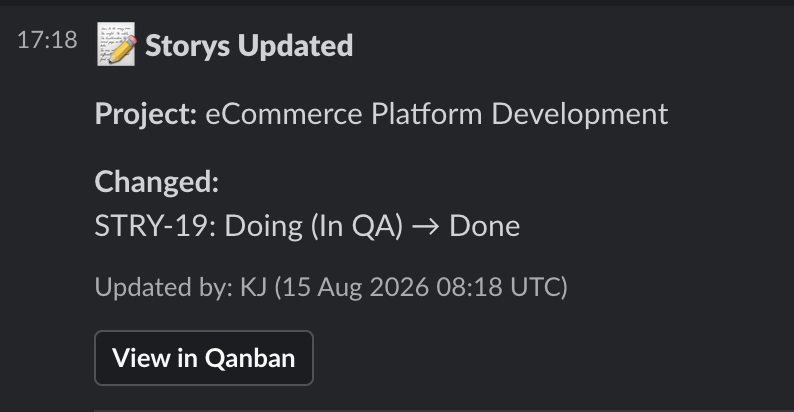
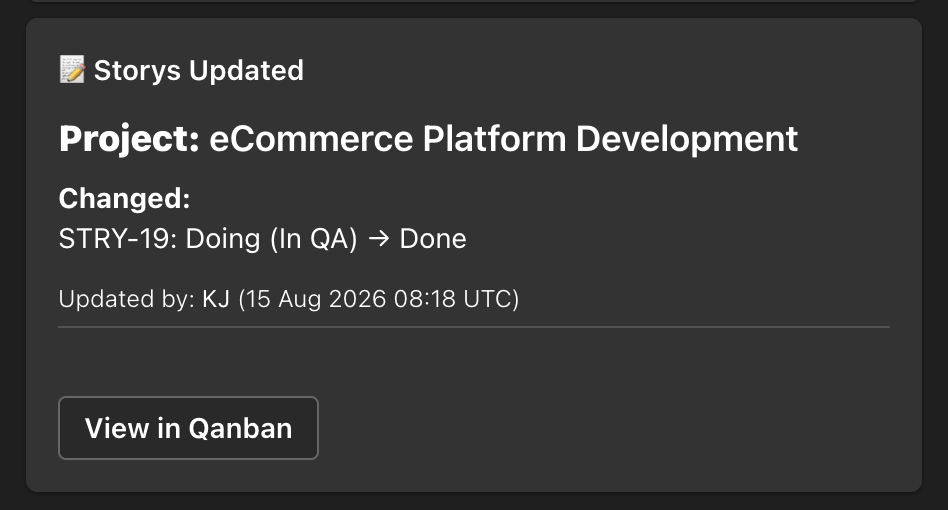
Every card carries a “View in Qanban” deep link that opens the specific work item on the right board. No hunting, no scrolling — one click and you are looking at the exact card that changed.
Which Events Fire a Qanban Webhook?
Qanban covers the full work-item hierarchy, so nothing important slips past:
| Work Item | Created | Updated | Deleted | Bulk Status Update |
|---|---|---|---|---|
| Epic | Yes | Yes | Yes | Yes |
| Feature | Yes | Yes | Yes | Yes |
| Story | Yes | Yes | Yes | Yes |
| Task | Yes | Yes | Yes | Yes |
Every notification includes the useful context, built automatically from the change itself:
- What changed — a concise “Changed:” summary such as
Status: To Do → In ProgressorAdded assignee: Priya,Removed assignee: Ben, orDue Date: 2026-08-01 → 2026-08-08. - Status + stage — because Qanban supports project and team stages, the message reflects where cards really are in your workflow.
- Assignee and due date — clear even when nothing else changed.
- Who did it and when — accountability without digging through audit logs.
This is the difference between “a notification” and “a notification you can act on“.
Workspace Defaults, Per-Project Overrides
One highly effective design decision: webhooks in Qanban operate on two levels to give you total control over your Slack/Teams notification integrations:
- A workspace default webhook applies to every project in the workspace. Set it once and all your Teams and Slack channels are covered.
- Per-project overrides allow any individual project to route notifications to a different destination — for example, routing a client-facing project to a dedicated channel while letting everything else flow to the main one. If a project has no webhook configured, the workspace default is used automatically.
No script-kiddie gymnastics, no duplicated config. You pick the granularity that matches how your organization actually communicates.
No-Code Setup: Connect Slack & Teams in Minutes

The setup experience is where Qanban webhooks genuinely surprise people seeking a Jira Slack integration alternative. (Note: only account owner and admin roles can configure webhooks in Qanban).
- Open the top right Profile -> Settings → Integrations in your Qanban workspace.
- Choose Microsoft Teams or Slack.
- Grab your channel’s webhook URL using the official setup guide — Qanban links you straight to the step-by-step Microsoft and Slack documentation.
- Paste the URL and save (post a sample message instantly and confirm everything works before saving).
That is it. The whole flow runs inside Qanban’s settings page. You never touch an API, never write a line of code, never stand up a server, and never install a separate “connector” app to bridge the gap.
For Microsoft Teams, simply create an Incoming Webhook in your channel and copy its URL. For Slack, use Incoming Webhooks to generate a channel-specific URL. Paste either one into Qanban and you are connected.
How Qanban Webhooks Compare to the Competition
We believe in honest comparisons. Here is how native webhook-to-Teams-and-Slack capability stacks up across the leading project management platforms:
| Capability | Qanban | Jira | monday.com | Asana | ClickUp |
|---|---|---|---|---|---|
| Native Teams/Slack formatted cards | Yes — built in | No — needs marketplace apps | No — needs API setup | No — webhooks deliver raw JSON | No — webhooks deliver raw JSON |
| No-code, in-app setup | Yes | Admin-level REST API required | Integration center on paid plans | Requires an internet-accessible server | Public API only |
| Per-project webhook routing | Yes — workspace default + per-project overrides | Limited/global | Per-board via API | No | No |
| Test connection before first event | Yes — one-click sample message | No | Limited | No | No |
| Deep links back to the exact work item | Yes — on every card | Requires custom setup | Requires custom setup | Requires custom setup | Requires custom setup |
| Included on the free plan | Yes — up to 10 users (Full formatted webhook support) | Free cap: 10 users (Raw JSON only; formatted cards require paid apps/middleware) | No (Webhooks restricted to paid plans) | Free cap: 2 users (Raw JSON API only) | Limited (Webhook limits apply on free tier) |
The pattern is consistent: with Jira, monday.com, Asana, or ClickUp, real-time chat notifications are something you build — you write or buy a bridge, run a server, register an endpoint, or subscribe through an API. With Qanban, they are something you switch on.
The Reddit Reality Check: Why Teams Are Frustrated with PM Webhooks
If you browse the project management and engineering subreddits, the frustration with legacy integrations is obvious. Teams are paying premium prices for tools that fail at basic chat communication.
When we analyzed the most common complaints across SaaS communities, three major themes emerged:
- The “Middleware Tax”: “I’m tired of needing a custom developer or a Zapier subscription just to make a Jira webhook readable. When it just dumps a wall of raw JSON code into our Slack channel, it is completely useless to my project managers.”
- Alert Fatigue: “Our Teams channel is permanently muted. Our PM tool fires a notification for every tiny keystroke and micro-edit. Because there is no way to filter for high-value events, it just creates noise.”
- Broken Tagging & Search: “Because the webhook sends plain text instead of native chat formatting, we can’t search for updates properly, and tagging doesn’t work. When a task is assigned, it just says their name in text, so their phone never actually gets the push notification.”
We built Qanban webhooks specifically to solve this. By sending native Block Kit and Adaptive Cards, we ensure that tags actually notify people, search works flawlessly, and the noise is eliminated.
Enterprise-Grade Security: SSRF Protection & Encryption
Webhooks carry a serious responsibility: they are a direct line to your communication channels. Qanban treats them that way.
- HTTPS enforced, SSRF protected: Webhook URLs are validated at save time and must use
https://, with protection against server-side request forgery (SSRF) — so a malicious or mistyped URL cannot be used to probe internal infrastructure. - URLs masked, redacted and encrypted: Your webhook URL is masked in the settings UI and redacted from all server logs. The secret part of your webhook stays secret (encrypted with AES 256).
- Async, non-blocking delivery: Notifications are dispatched asynchronously in the background, so firing a webhook never slows down the create/update itself. Your team’s work is never blocked by a slow channel endpoint.
- Fast resolution with caching: Webhook lookups are cached server-side, keeping event delivery snappy even under heavy board activity.
Who Is the Qanban Webhook For?
- Project Managers who want a live, low-noise feed of what is moving through every board — without living inside the tool.
- Team Leads who need to know the moment a story changes hands or a due date slips, so they can react early instead of late.
- Release & Change-Management Channels where the whole org should see when features and stories move to release stages.
- Client-Facing Projects where a dedicated Teams or Slack channel keeps stakeholders informed without granting them access to the tool.
- Distributed & Hybrid Teams who coordinate primarily in chat and have stopped checking the PM tool obsessively.
Whether you run a five-person startup on the free plan or a 200-person enterprise, Qanban webhooks give you the same thing: the right people, in the right channel, at the exact moment the work changes.
Why Teams Switch to Qanban for Notifications
The story we hear from teams migrating from Jira or monday.com is consistent: they were already paying for the PM tool, then realized that sending beautiful task notifications to Slack or Teams meant adding another subscription — or commissioning a developer to glue everything together with a custom endpoint. Somewhere in that chain of add-on subscriptions and integration work, they realized the feature they wanted was more expensive than the tool it extended.
That is not a product. That is a project.
Qanban was built on a simple belief: the features you need to run your team should come with your account. Chat notifications are not an optional extra — they are how modern teams stay aligned. So we made the opposite choice. The webhook integration is in. It is free to start. It works from day one. And it requires no trip to any marketplace to unlock.
Get Started Today — Free
Qanban webhooks are ready for you right now. Sign up for a free Qanban account, open Settings → Integrations, paste in a Microsoft Teams or Slack webhook URL, and send your first test message within minutes. No credit card required. No plugins. No code.
From your first login — even on the free plan — every task change can be flowing into the channel your team actually reads. Stop chasing updates. Let Qanban deliver them to you.
Frequently Asked Questions
What events trigger a Qanban webhook? Webhooks fire when an Epic, Feature, Story, or Task is created, updated, or deleted, and when a bulk status update is applied (for example, dragging multiple cards). Updates include status and stage changes, assignee changes, and due-date changes.
Do I need to run a server or an endpoint to receive Qanban webhooks? No. Qanban sends pre-formatted cards directly to the Microsoft Teams or Slack Incoming Webhook URL you configure. No server, no endpoint, no code.
Do I need a third-party app to connect Qanban to Microsoft Teams or Slack? No. The integration is built natively into Qanban. You only create the Incoming Webhook inside Teams or Slack using the official guides linked from the integration settings page.
Can different projects send notifications to different channels? Yes. Qanban supports a workspace default webhook plus per-project overrides, so a project’s notifications can go to a dedicated channel while everything else uses the workspace default.
Is my webhook URL safe? Yes. Webhook URLs must use HTTPS and are validated at save time with SSRF protection. The full URL is masked in the settings UI and redacted from server logs.
Which Qanban plans include webhooks? Webhooks are included on all plans — including the free plan.